

Understanding the Linux Filesystem: A Beginner's Guide
Explore the Linux directory structure and how it all fits together
Hi there 🤗 , I am Mary Okosun! I am a back-end developer based in Lagos, Nigeria. I enjoy writing about my experiences and new technologies in JavaScript and its frameworks. When I am not coding or writing articles, I see a movie or play volleyball.
What is the Linux filesystem?
As a DevOps engineer, understanding the Linux filesystem is one of the first foundational skills you need. When you SSH into a Linux server to investigate a failed deployment, check application logs, modify a service configuration, or troubleshoot disk space, you are interacting with the Linux filesystem.
Linux powers a large portion of modern infrastructure, and even when you're working with technologies such as AWS, Azure, Docker, Kubernetes, or CI/CD tools, Linux is often running underneath these technologies.
The Linux filesystem is how Linux organises files, directories, configurations, applications, logs, and other resources. Once you understand where these things live, navigating a server and troubleshooting problems becomes much easier.
In this article, we'll explore some of the most important Linux directories, what they contain, and why they matter to a DevOps engineer.
Linux filesystem hierarchy
Core filesystem
- The
/rootdirectory
The root directory is the top-level directory of a Linux filesystem. It is represented by the symbol /. It can also be described as the starting point of all files and directories in Linux.
/
├── etc
├── home
├── opt
├── tmp
├── usr
└── var
Unlike Windows, where you may be familiar with drives such as C:\ and directories such as C:\Users or C:\Program Files, Linux uses a single directory tree. Everything starts from a directory called the **root directory**, represented by /.
From /, other directories branch out to form a hierarchical, tree-like structure.
It's important to note that the root directory
/is different from the root user, which is the Linux superuser.
- The
/homedirectory
The /home directory is directly under the root directory / and it contains personal files and folders for users. This is where users would typically store their documents, projects, downloaded files, etc.
If your Linux username is mary, your home directory would be
/home/mary
This is important as each user would typically have their own home directory, which provides a separate space for their personal files and projects.
- The
/etcdirectory
The /etc directory contains system-wide configuration files and configuration files for many installed applications.
For example, if Nginx is installed on a server, you may find its configuration under:
/etc/nginx/
You may also come across files such as:
/etc/hosts
/etc/ssh/sshd_config
The /etc/hosts file can be used to manually map hostnames to IP addresses, while SSH configuration files control how the SSH server behaves.
As a DevOps engineer, you'll frequently work with /etc when configuring servers and applications, managing services, troubleshooting networking issues, or modifying system settings.
When you know where an application's configuration lives, you know where to look when something isn't working as expected.
- The
/vardirectory
The /var directory contains files that change frequently while the system and applications are running. There are several important subdirectories, including:
/var
├── log       → system and application logs
├── cache     → cached application/package data
├── lib       → persistent application/system data
└── tmp       → temporary files
One of the most important is the /var/log directory. This contains the system and application logs.
Imagine Nginx suddenly stops serving requests. You check the configuration under /etc/nginx, but the configuration looks correct. Your next step might be to inspect /var/log/nginx/ for errors.
Learning to read logs is one of the most useful Linux troubleshooting skills a DevOps engineer needs to have in their stack.
- The
/usrdirectory
This directory contains most of the programs, libraries, and other resources used by users and applications. It generally contains software managed as part of the operating system.
/usr
├── bin      → user commands and executable programs
├── lib      → libraries used by programs
├── local    → software installed locally by the administrator
└── share    → architecture-independent data such as documentation
You will frequently encounter /usr/bin when working with Linux commands. For example, a command such as ls may be located at /usr/bin/ls.
- The
/optdirectory
This directory is commonly used for third-party or manually installed applications. It is commonly used for add-on or self-contained applications. An application can also be deployed in this directory.
For instance, an organization might install a custom application under:
/opt/my-org-app/
This makes /opt a directory you may encounter when deploying internally developed applications or manually installed software.
- The
/tmpdirectory
The /tmp directory is used by applications and users to store temporary files. Files stored here should generally be considered temporary and should not be used for important or persistent application data.
Linux systems may automatically remove files from /tmp, depending on how the system is configured.
System and runtime directories
- The
/bindirectory
The /bin directory contains essential command-line programs used for basic system operations.
You may find commands such as:
ls (list directory content)
cp (copy files and directories)
mv (move or rename file)
cat (display file content)
mkdir (create new directory)
rm (remove/delete file or directory)
echo (print text to output)
For example:
ls /bin
You can use ls /bin to list the entries in /bin.
However, on many modern Linux distributions, /bin is a symbolic link to /usr/bin. This means that /bin is no longer a separate directory containing its own copy of the programs. Instead, /bin points to /usr/bin, so both paths refer to the same location.
This is part of a filesystem layout commonly referred to as usr merge.
As a beginner, the important thing to understand is that commands such as ls, cp, and mv are executable programs stored somewhere in the filesystem, and directories such as /bin and /usr/bin are locations where these programs can be found.
- The
/sbindirectory
The /sbin directory contains essential system administration commands, traditionally intended primarily for use by the system administrator. The distinction between /bin and /sbin is less strict on modern Linux systems, where /sbin may also be a symbolic link to /usr/sbin.
On modern Linux distributions using usr-merge, /sbin may be a symbolic link to /usr/sbin. This implies that both paths /sbin and /usr/sbin refer to the same directory.
- The
/devdirectory
The /dev directory contains device files that provide an interface to hardware and certain virtual devices.
ls /dev
You might see:
/dev/sda
/dev/nvme0n1
/dev/null
/dev/zero
/dev/random
/dev/tty
You may encounter /dev when investigating disks, working with storage, mounting filesystems or working with containers.
- The
/procdirectory
The /proc directory is one of the most interesting Linux directories. It is a virtual filesystem that exposes information about the running Linux kernel and processes.
You can inspect it with
ls /proc
You might see directories with different numbers. These numbers represent process IDs (PIDs).
/proc isn't just a strange directory containing numbers, it's a way to inspect information about running processes.
- The
/rundirectory
The /run directory contains information created by the system and services while the machine is running. These information include runtime state, such as PID files, sockets, and other information needed by running services.
You can inspect it with:
ls /run
You might see directories such as:
/run/systemd
/run/lock
/run/user
Unlike /var, which is used for persistent variable data, /run is primarily for runtime information that is relevant while the system is running.
Filesystem tree
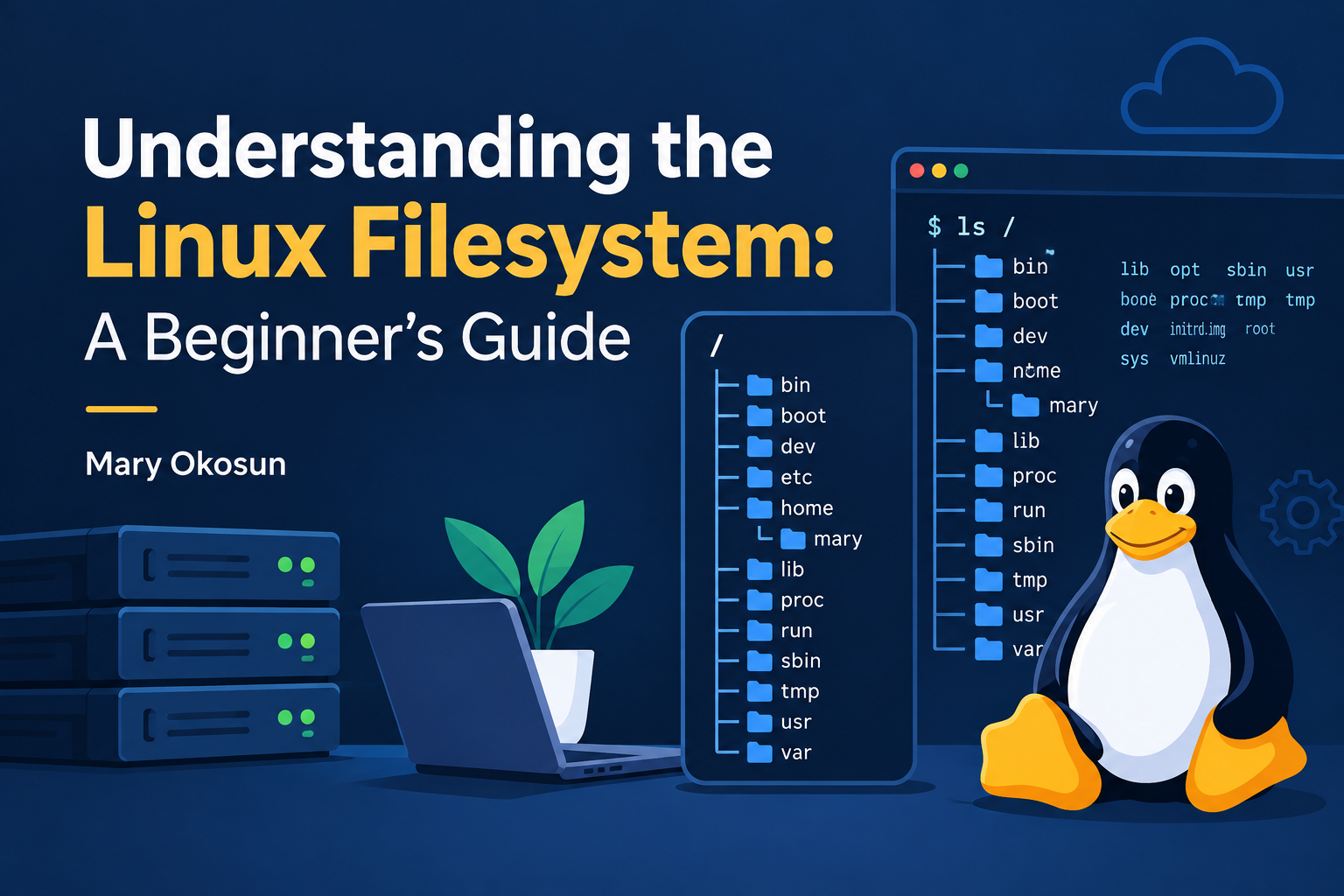
A simplified visual representation of the filesystem we've discussed so far looks like this:
/
├── bin
├── dev
├── etc
├── home
│   └── mary
├── opt
├── proc
├── run
├── sbin
├── tmp
├── usr
│   ├── bin
│   ├── lib
│   └── local
└── var
    ├── lib
    ├── log
    └── tmp
Conclusion
Understanding the Linux filesystem isn't about memorising every directory or knowing exactly what every file contains. It's about building a mental map of the system.
When an application isn't starting, you should know where to look for its configuration. When a server is running out of space, you should know where logs and application data might be stored. When you're troubleshooting a service, you should be comfortable navigating the filesystem and inspecting the files related to it.
As you progress in your DevOps journey, you'll repeatedly work with directories such as /etc, /var, /usr, /home, and /opt.
One simple habit that will help you while working on Linux is to always know where you are:
pwd
Before running commands on a server, especially commands that modify or delete files, use pwd and ls to confirm your current location.
The goal is not to memorise every directory. It's to build a mental map that helps you know where to look when a problem occur.


